![[X25]❄️ +1 Speed Snow Keyboard Escape Wiki logo](/images/site/logo.webp)
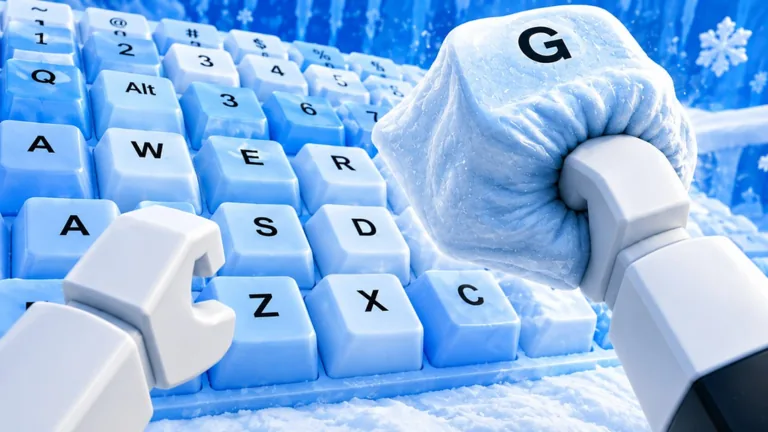
Check your Roblox controls before the course
The game requires movement, jumping, camera control, and adjustment of the visible Custom Speed control. Exact buttons can differ by device and Roblox settings, so use the current on-screen prompts or Roblox control menu rather than memorizing a device-specific list from an older page.
Test every action in a safe area before entering the snowy keys: move forward and sideways, stop cleanly, jump from a standstill, jump while moving, rotate the camera, and change Custom Speed once. If any input behaves differently from the prompt, fix that before practicing obstacles.
Four inputs shape every run
Good platforming is not only about pressing jump. Your result comes from four connected controls.
| Control | What it changes | Safe first test |
|---|---|---|
| Movement | Direction and approach momentum | Walk between two fixed markers |
| Jump | Takeoff timing and gap clearance | Repeat one wide static gap |
| Camera | Travel line and landing visibility | Center a distant key before moving |
| Custom Speed | Usable movement pace | Adjust slightly and repeat the same jump |
Keep the tests separate. If you change the camera, movement angle, and Custom Speed at once, you cannot tell which input fixed or caused the miss.
Set the camera before moving
Aim through the center of the landing key. A diagonal camera makes straight movement produce a diagonal route, which becomes more severe as pace increases. Set the view while standing safely, then begin the approach.
For narrow keys, look far enough ahead to see both the landing and the next safe stopping space. Avoid large camera swings during flight. Once you land, stop or stabilize before choosing the next angle.
If the camera feels too sensitive or too slow, open the current Roblox settings and adjust in small steps. Retest on the same static jump. Do not copy a universal sensitivity value; screen size, input device, and personal control differ.
Keep movement inputs consistent
Use a fixed approach marker on the keyboard surface. Begin from the same place, hold the same direction, and jump at the same visual cue. A vague “bad jump” then becomes a result you can diagnose.
Watch for three habits:
- pressing sideways while trying to correct a forward jump;
- holding forward after landing and sliding off;
- starting a jump while the camera is still turning.
Correct one habit at a time. A clean straight approach is easier to repeat than a last-second midair correction.
Treat Custom Speed as a control
Total Speed grows through movement in the official game loop. Custom Speed is the visible control that helps make that growth manageable on the course.
Find a baseline by attempting one wide gap three times. If all attempts overshoot, lower Custom Speed slightly. If all fall short with the same approach, raise it slightly or keep more momentum. If the misses differ, stabilize the camera and starting point before touching the setting.
Keep more than one working range if you need it. A normal course pace works on broad platforms, while a slower precision pace can help with moving hazards or narrow landings. No single value works for every player.
Time each jump from a visual cue
The course can include moving and spinning hazards, rolling objects, gaps, and surfaces that depend on timing. Read the obstacle in front of you instead of relying on a fixed map.
- Stop on a safe key.
- Watch one complete hazard cycle.
- Choose a clear moment when the route opens.
- Begin from the same marker.
- Jump and then stabilize on the next safe key.
If the hazard hits you, keep the movement setup and change only the cue. If you clear the hazard but miss the key, keep the cue and diagnose distance or direction.
Troubleshoot inputs on your device
Exact keyboard, mobile, and controller bindings can differ. Check the prompts in your current Roblox client, then use the steps below.
Keyboard and Mouse
Open Roblox controls, confirm the displayed movement and jump inputs, and make sure chat or another UI field is not capturing keystrokes. Test the mouse camera in a safe area before setting sensitivity.
Touchscreen
Use the buttons displayed by the current Roblox mobile interface. Check that your thumb can hold movement without covering the landing area, and test whether camera movement interrupts your jump setup.
Controller
Read the current Roblox controller prompt. Test stick dead zone, camera movement, and jump registration away from the course. If drift changes your approach line, reconnect or recalibrate the device before continuing.
These checks describe the process without claiming buttons that the current build has not verified.
Diagnose a miss by its direction
| Miss pattern | Input to inspect first |
|---|---|
| Always too far | Custom Speed or forward-release timing |
| Always too short | Approach momentum or Custom Speed |
| Left and right variation | Camera alignment or sideways input |
| Jump does not register | Current control prompt, focus, or device connection |
| Landing succeeds, then fails | Continued movement after contact |
Repeat the same test after one correction. Three similar results tell you more than ten rushed attempts with changing inputs.
Build a clean-run routine
Before a serious attempt, confirm the device, close any obstructing UI, select a controllable Custom Speed, and center the camera. At each safe key, observe the next hazard and decide where to stop after landing.
Before each jump, check the obstacle and set your line. Move, jump, and release the input in time to stay on the landing. As your Speed grows, return to the practice gap and see whether the same inputs still work.
FAQ
What are the exact controls for the game?
Use the current Roblox control menu and on-screen prompts for your device. A permanent device-specific button list would become outdated as Roblox changes its client.
Why does my character move diagonally?
Center the camera on the landing and remove sideways input before starting. Controller drift or touch-camera movement can also change the line.
Should I hold movement after landing?
Release or reduce it early enough to remain on the key. Continued forward input is a common cause of sliding off a successful landing.
How do I fix a jump that does not register?
Test the displayed jump input in a safe area, close focused chat or menus, and reconnect the device if the problem continues.
Does Custom Speed change the control layout?
It changes usable movement pace, not the verified input map. Retest your timing after adjustments because the same approach can travel a different distance.